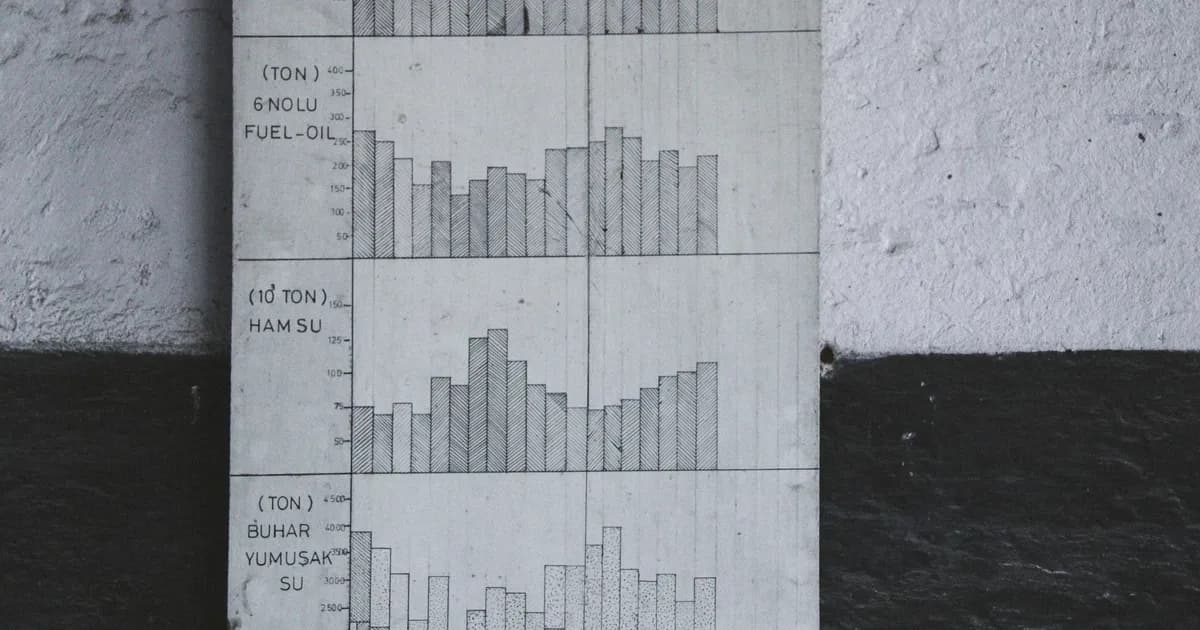
Transformez un tableur en rapport visuel en 3 minutes
Vous recevez un export CSV de votre CRM. Votre responsable veut "quelque chose de visuel" pour la réunion trimestrielle. Vous avez des chiffres, mais les chiffres seuls ne racontent pas une histoire. Les graphiques, si.
Le problème est bien connu : vous devez présenter des données visuellement, mais vous ne voulez pas ouvrir Excel, vous battre avec la mise en forme des graphiques ou installer un logiciel. Vous voulez simplement coller vos données quelque part et obtenir un graphique.
Pourquoi les rapports visuels fonctionnent
Un graphique en barres communique une tendance en deux secondes. Les mêmes données dans un tableau nécessitent de parcourir les lignes, de comparer mentalement les chiffres et de construire le schéma dans sa tête. Les recherches montrent que l'information visuelle est traitée 60 000 fois plus rapidement que le texte.
Les rapports visuels sont essentiels pour :
- Les bilans commerciaux — tendances de revenus, état du pipeline, comparaisons régionales
- Les mises à jour de projet — suivi budgétaire, avancement des jalons, allocation des ressources
- Les résultats d'enquête — scores de satisfaction, distributions des réponses, répartitions démographiques
- Les résumés financiers — catégories de dépenses, marges bénéficiaires, comparaisons trimestrielles
Le processus
Transformer des données brutes en rapport visuel ne nécessite ni logiciel coûteux ni compétences en design. Voici le processus :
Étape 1 : Importez vos données
Commencez avec vos données dans n'importe quel format courant — CSV, TSV ou JSON. La plupart des outils exportent dans au moins l'un de ces formats. Vous pouvez coller les données directement dans la zone de texte, importer un fichier, ou basculer en vue tableur pour visualiser vos données dans un tableau avant de créer le graphique. Un sélecteur de délimiteur vous permet de choisir le bon séparateur si votre CSV utilise des points-virgules, des tabulations ou des barres verticales.
Étape 2 : Choisissez le bon type de graphique
Tous les graphiques ne conviennent pas à tous les jeux de données. Choisir le mauvais type de graphique rend les données plus difficiles à lire, pas plus faciles.
| Question sur les données | Meilleur type de graphique | Exemple |
|---|---|---|
| Comparer des valeurs entre catégories | Graphique en barres | Revenus par région |
| Montrer l'évolution dans le temps | Graphique en courbes | Tendance des ventes mensuelles |
| Montrer les proportions d'un tout | Camembert / Anneau | Part de marché par concurrent |
| Trouver des corrélations entre variables | Nuage de points | Prix vs. demande |
| Comparer plusieurs dimensions | Graphique radar | Évaluation des compétences des employés |
| Présenter les chiffres bruts en lignes | Tableau de données | Détail d'un bilan financier |
Astuce En cas de doute, commencez par un graphique en barres. C'est le type de graphique le plus universellement compris et il fonctionne pour la plupart des scénarios de comparaison.
Étape 3 : Personnalisez votre graphique
Les outils modernes de création de graphiques offrent un contrôle précis sur chaque aspect de votre graphique :
- Légende — positionnez-la de n'importe quel côté, modifiez la police et la taille
- Titre — définissez la position, la famille de police, la taille et la couleur
- Couleurs — choisissez des couleurs individuelles par série, ou importez une palette complète depuis un générateur de palettes
- Options spécifiques au graphique — coins arrondis pour les barres, tension de courbe pour les lignes, rayon intérieur pour les anneaux, taille et forme des points pour les nuages de points
- Taille du graphique — définissez les dimensions exactes en pixels avec verrouillage du ratio
Toutes les options sont organisées en sections dépliables pour que vous puissiez vous concentrer sur l'essentiel et masquer le reste.
Étape 4 : Exportez et partagez
Une fois que votre graphique est correct, exportez-le en image PNG haute résolution. L'export utilise une résolution 3x pour un rendu net même en cas de zoom ou d'impression. La plupart des flux de travail de rapports visuels se terminent par l'un de ces formats :
- PNG — à insérer directement dans les diapositives, documents ou e-mails
- Copier dans le presse-papiers — à coller directement dans votre document
Palettes de couleurs
Harmoniser les couleurs dans un rapport lui donne un aspect professionnel et cohérent. Vous pouvez générer une palette de couleurs harmonisée avec le Générateur de palettes de couleurs, l'exporter en JSON ou CSV, puis l'importer directement dans le Générateur de graphiques. La palette est appliquée à vos colonnes de l'axe Y dans l'ordre — si vous avez plus de colonnes que de couleurs, les colonnes supplémentaires conservent leurs couleurs par défaut.
Six types de palettes sont disponibles : complémentaire, analogue, triadique, tétradique, monochromatique et dégradés. Vous pouvez générer un nombre quelconque de couleurs (de 2 à 100) à partir d'une seule couleur de base.
Qu'en est-il de la confidentialité ?
Lorsque vous utilisez un outil en ligne pour visualiser des données, la préoccupation naturelle est : où vont mes données ?
Avec les outils basés sur le navigateur comme ToolK.io, la réponse est : nulle part. Vos données restent dans votre navigateur. Le graphique est généré en JavaScript sur votre appareil. Rien n'est envoyé à un serveur. C'est important lorsque vous travaillez avec des données commerciales confidentielles, des chiffres financiers ou des informations clients.
Erreurs courantes à éviter
Trop de séries de données. Un graphique avec 15 lignes superposées est pire qu'un tableau. Limitez-vous à 3–5 séries par graphique. Utilisez les cases à cocher pour afficher et masquer les séries selon vos besoins.
Mauvais type de graphique pour les données. Les graphiques en camembert ne devraient pas avoir plus de 5–6 parts. Les graphiques en courbes nécessitent un axe temporel. Les nuages de points nécessitent deux variables numériques.
Pas de titre ni d'étiquettes. Un graphique sans contexte n'a aucun sens. Ajoutez toujours un titre qui indique ce que le lecteur doit retenir du graphique.
Ignorer le contraste des couleurs. Assurez-vous que les couleurs de votre graphique sont distinguables, surtout pour les personnes daltoniennes. Évitez d'utiliser le rouge et le vert ensemble pour les comparaisons importantes.
Essayez maintenant
Prêt à transformer vos données en graphique ? Ouvrez le Générateur de graphiques, collez vos données CSV ou JSON, choisissez votre type de graphique et exportez votre rapport visuel en quelques secondes. Aucun compte nécessaire, aucun logiciel à installer, et vos données ne quittent jamais votre navigateur.